
How to Use DuoPlus Cloud Phone with NordVPN: Setup & Workflow
Learn how to combine DuoPlus Cloud Phone with NordVPN for isolated mobile environments and encrypted traffic, including setup steps, use cases, and troubleshooting.
How to Use DuoPlus Cloud Phone with NordVPN: Setup & Workflow
DuoPlus Cloud Phone gives you isolated Android devices in the cloud, each with its own device fingerprint, GPS, SIM, and base station data. NordVPN encrypts your traffic and masks your IP. Used together, they can add a layer of network privacy to your mobile multi-accounting workflow — but only if you configure them correctly. This guide explains how the two tools complement each other, how to set them up, and how to avoid the most common conflicts.
Why combine DuoPlus Cloud Phone with NordVPN?
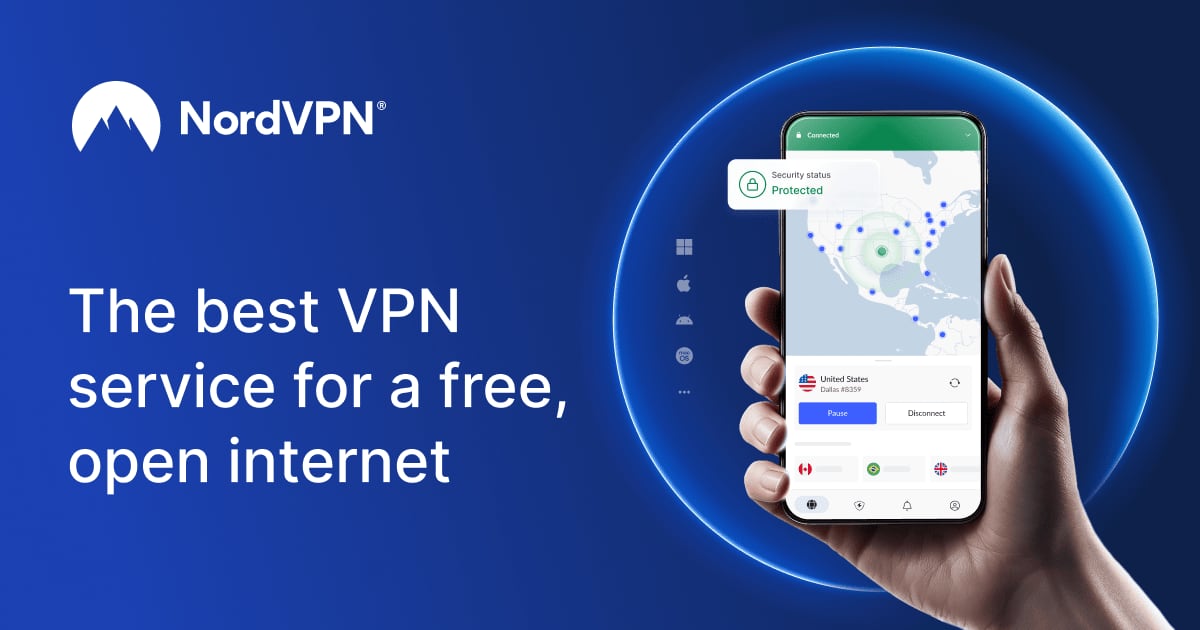
NordVPN product interface.
DuoPlus Cloud Phone is built for managing multiple online accounts without triggering association risks. It deploys real ARM mobile devices globally, each with unique device parameters, so accounts look like they belong to different physical phones in different locations.
NordVPN adds a network privacy layer. It encrypts internet traffic, hides your real IP address, and routes connections through servers worldwide. It also includes next-gen antivirus features that monitor for data leaks and detect scams, phishing, fraud, and malware.
Together, they address two different layers of isolation:
- Device layer: DuoPlus Cloud Phone separates device fingerprints, GPS, SIM, and base station data per cloud phone.
- Network layer: NordVPN encrypts traffic and masks your IP, which can be useful when you want to protect your real network identity or add a consistent egress point.
This combination is most relevant for social media marketers, e-commerce sellers, affiliate marketers, ad account managers, and mobile app testers who already use DuoPlus Cloud Phone and want to understand how a VPN fits into their setup.
How DuoPlus Cloud Phone and NordVPN work together
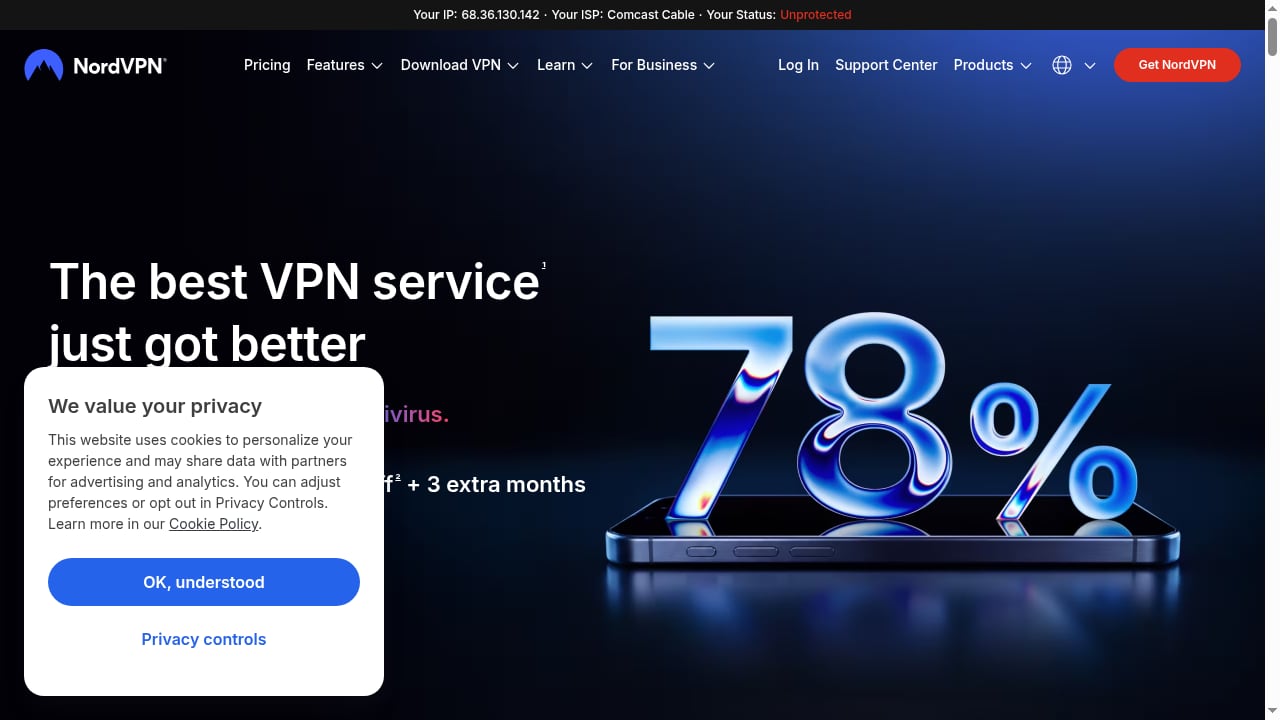
First viewport screenshot of nordvpn.com.
DuoPlus Cloud Phone runs Android instances in the cloud. You access them through a PC or mobile browser. Each cloud phone has its own simulated environment, including device fingerprint, GPS location, SIM card, and base station data.
NordVPN operates at the network level. When you connect a device to a NordVPN server, that device's internet traffic is encrypted and routed through the VPN server, so websites see the VPN server's IP address instead of your real one.
The key point is that these tools operate on different layers. DuoPlus manages the device identity; NordVPN manages the network path. That separation is what makes the combination useful — and also what makes misconfiguration possible.
Where the combination helps
- Protecting your real IP while managing accounts: If you access cloud phones from a personal or office network, a VPN can prevent your real IP from being exposed to the services you use inside the cloud phone.
- Adding a consistent network location: A VPN server in a specific country can give your session a stable egress IP that matches the region you are targeting.
- Securing your local connection: NordVPN encrypts traffic between your device and the VPN server, which is useful on public Wi-Fi or untrusted networks.
- Reducing exposure to malware and phishing: NordVPN's Threat Protection can help block malicious domains and scams while you work.
Where the combination can cause problems
- IP conflicts: If NordVPN is active on the same device or network path as your cloud phone, it can override the IP you intended to use. This is a common issue when a VPN runs at the system level and takes priority over other network settings.
- Proxy interference: If you use proxies with DuoPlus Cloud Phone, a VPN can conflict with the proxy configuration. The cloud phone may show the VPN's IP instead of the proxy's IP.
- Threat Protection override: NordVPN's Threat Protection feature can have system-level priority and force traffic through NordVPN's IP even when the VPN connection is off. This can break proxy setups and cause IP mismatches.
Understanding these conflicts is essential before you start configuring anything.
Before you start: prerequisites and planning
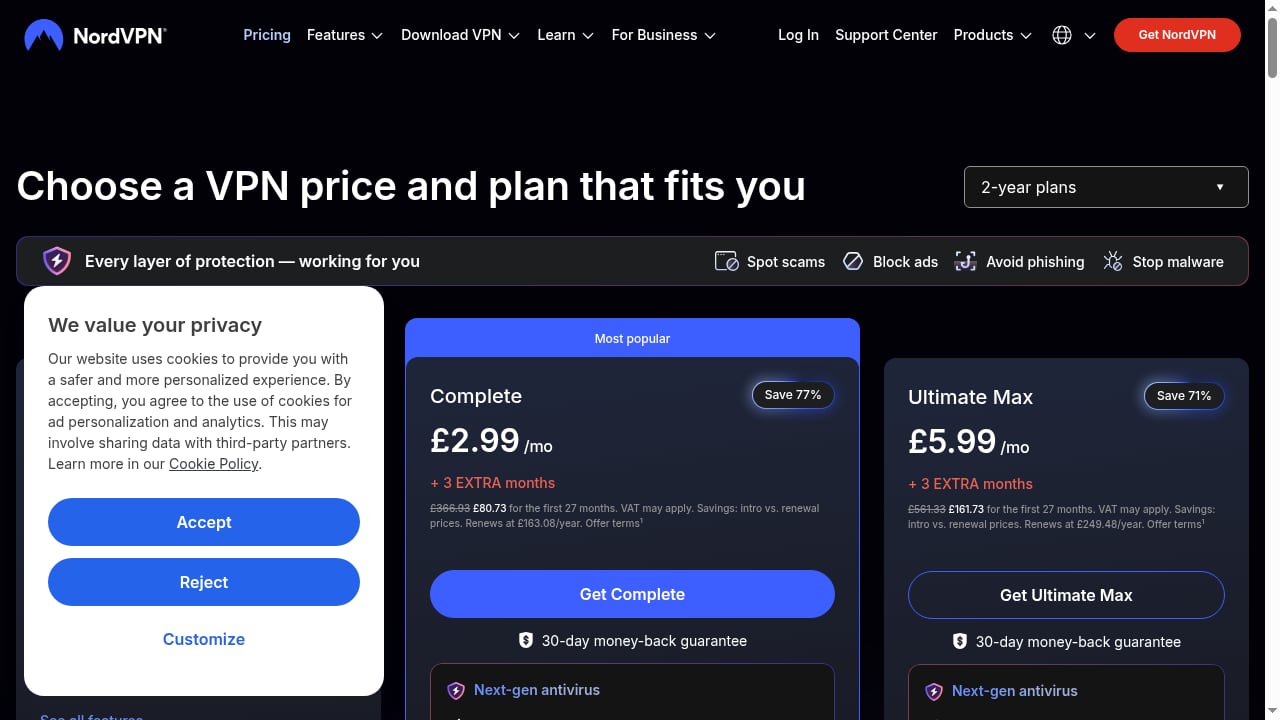
First viewport screenshot of nordvpn.com.
Before combining DuoPlus Cloud Phone with NordVPN, clarify what you want to achieve. The setup differs depending on whether you need a VPN for your local access device, for the cloud phone itself, or both.
Prerequisites
- A DuoPlus Cloud Phone account with at least one cloud phone instance.
- A NordVPN subscription. NordVPN plans cover up to 10 devices simultaneously, so check how many devices you need to protect.
- Access to the DuoPlus Cloud Phone web console via PC or mobile browser.
- A clear plan for which network path each cloud phone should use.
Decide where the VPN should run
There are two main approaches:
- VPN on your local device: You connect your computer or phone to NordVPN, then access DuoPlus Cloud Phone through the browser. The VPN protects your local connection, but it may also affect the IP that the cloud phone sees if the cloud phone routes traffic through your local network.
- VPN inside the cloud phone: You install the NordVPN Android app inside the DuoPlus Cloud Phone instance. This gives the cloud phone its own VPN connection, independent of your local device.
Each approach has trade-offs. The first is simpler but can create IP conflicts. The second is more isolated but requires installing and configuring the VPN app inside each cloud phone.
Step-by-step setup
Option 1: Run NordVPN on your local device
This is the easiest way to add encryption to your local connection while using DuoPlus Cloud Phone.
- Install NordVPN on your computer or phone. Download the app from the official NordVPN website or your device's app store.
- Sign in and connect to a server. Choose a server location that makes sense for your workflow. If you are managing accounts in a specific country, choose a server in that country.
- Open DuoPlus Cloud Phone in your browser. Log in to your DuoPlus account and launch the cloud phone you want to use.
- Check the IP inside the cloud phone. Use a browser or app inside the cloud phone to verify the public IP address. Confirm it matches what you expect.
- Disable Threat Protection if you use proxies. If you plan to use proxies with DuoPlus Cloud Phone, turn off NordVPN's Threat Protection feature to prevent it from overriding your proxy IP.
Important: If your cloud phone is configured to use a proxy, running NordVPN on your local device may not affect the cloud phone's IP at all, because the cloud phone's traffic may route through its own proxy. Always verify the IP from inside the cloud phone.
Option 2: Install NordVPN inside the DuoPlus Cloud Phone
This approach gives each cloud phone its own VPN connection, which is useful when you want network isolation at the device level.
- Launch your DuoPlus Cloud Phone instance. Open the cloud phone from the DuoPlus web console.
- Install the NordVPN Android app. Use the cloud phone's app installation feature to install NordVPN from the Google Play Store or an APK.
- Sign in to NordVPN. Use your NordVPN account credentials.
- Connect to a server. Choose a server location that matches the region you want the cloud phone to appear from.
- Verify the IP. Open a browser inside the cloud phone and check the public IP address. Make sure it matches the VPN server location.
- Repeat for each cloud phone. If you manage multiple cloud phones, install and configure NordVPN in each one individually. NordVPN plans cover up to 10 devices, so plan accordingly.
Note: Installing a VPN app inside a cloud phone may affect how the cloud phone's GPS and network data align. DuoPlus Cloud Phone simulates GPS and base station data; a VPN changes the network path but not the simulated GPS. Make sure the VPN server location and the simulated GPS location are consistent for your use case.
Option 3: Use NordVPN on your router
If you want all devices on your local network to route through NordVPN, you can configure the VPN on your router. This protects every device connected to that network, including the computer you use to access DuoPlus Cloud Phone.
This approach is convenient but less granular. It also increases the risk of IP conflicts if you use proxies inside your cloud phones.
Practical examples
Example 1: Social media marketer managing multiple accounts
A social media marketer uses DuoPlus Cloud Phone to manage several Facebook and TikTok accounts. Each cloud phone has a unique device fingerprint and GPS location. The marketer wants to protect their real IP while working from a home office.
Setup: The marketer installs NordVPN on their local computer and connects to a server in the same country as their target audience. They access DuoPlus Cloud Phone through the browser. Inside each cloud phone, they verify the IP address and ensure it matches the expected region. They do not use proxies inside the cloud phones, so there is no conflict.
Result: The marketer's real IP is hidden, and the cloud phones continue to present isolated device identities.
Example 2: E-commerce seller using proxies inside cloud phones
An e-commerce seller operates multiple TikTok Shop and Shopee accounts. They use DuoPlus Cloud Phone with residential proxies for each account. They also want to use NordVPN for general privacy.
Setup: The seller installs NordVPN on their local computer but disables Threat Protection. They do not install NordVPN inside the cloud phones, because the cloud phones already use proxies. They verify that each cloud phone shows the correct proxy IP, not the VPN IP.
Result: The proxies remain effective, and the seller's local traffic is encrypted.
Example 3: Mobile app tester checking geo-specific behavior
A mobile app tester needs to see how an app behaves in different countries. They use DuoPlus Cloud Phone to simulate devices in various regions.
Setup: The tester installs NordVPN inside each cloud phone and connects to a server in the target country. They also set the cloud phone's GPS to a matching location. They verify the IP and GPS alignment before testing.
Result: The app sees a device that appears to be in the target country, with a matching network path.
Troubleshooting common issues
The cloud phone shows the wrong IP
If the IP inside your cloud phone does not match what you expect, check the following:
- Proxy settings: If you use a proxy, confirm it is configured correctly and that the cloud phone is routing through it.
- VPN status: If NordVPN is active on your local device or inside the cloud phone, it may override the proxy. Disconnect the VPN or adjust its settings.
- Threat Protection: Disable NordVPN's Threat Protection feature, as it can force traffic through NordVPN's IP even when the VPN is off.
- WebRTC: If you use a browser inside the cloud phone, check WebRTC settings to ensure IP information is not leaking.
The cloud phone cannot connect to the internet
If the cloud phone loses internet access after installing NordVPN, try the following:
- Disconnect and reconnect the VPN.
- Switch to a different VPN server.
- Restart the cloud phone.
- Check if the VPN app has permission to create a VPN connection on Android.
GPS and IP locations do not match
DuoPlus Cloud Phone simulates GPS and base station data. NordVPN changes the network IP. If these do not align, the account may appear inconsistent. Always set the VPN server location to match the cloud phone's simulated GPS location when consistency matters.
DuoPlus Cloud Phone vs. NordVPN: what each tool does

NordVPN product interface.
| Feature | DuoPlus Cloud Phone | NordVPN |
|---|---|---|
| Primary purpose | Isolated Android cloud phones for multi-accounting | Encrypted VPN and cybersecurity |
| Device fingerprint isolation | Yes, unique per cloud phone | No |
| GPS and SIM simulation | Yes | No |
| IP masking | Depends on proxy configuration | Yes |
| Traffic encryption | Not its primary function | Yes |
| Malware and phishing protection | No | Yes, via Threat Protection |
| Multi-device coverage | Unlimited cloud phones | Up to 10 devices per plan |
| Best for | Managing multiple mobile accounts | Protecting local network traffic |
This table shows that the tools are complementary, not substitutes. DuoPlus Cloud Phone handles device-level isolation; NordVPN handles network-level privacy.
When to use DuoPlus Cloud Phone with NordVPN — and when not to
Use the combination when:
- You want to hide your real IP while accessing cloud phones from an untrusted network.
- You need a consistent network location for your sessions.
- You want additional protection against malware and phishing while working.
- You are not using proxies inside your cloud phones, or you can manage the configuration to avoid conflicts.
Avoid the combination when:
- You rely on proxies inside your cloud phones and cannot disable VPN features that override proxy settings.
- You need precise control over each cloud phone's IP and cannot risk a VPN overriding it.
- You are managing more devices than your NordVPN plan covers.
If you need granular IP control per cloud phone, consider using DuoPlus Cloud Phone with dedicated proxies instead. For a detailed walkthrough, see How to Use DuoPlus Cloud Phone with Proxies: Full Guide.
Related reading
- DuoPlus Cloud Phone vs ShadowPhone: 2026 Comparison - Compare DuoPlus Cloud Phone and ShadowPhone in 2026: real ARM cloud devices vs USB-connected Pixel phones for Instagram automation, isolation, scale, and cost.
- ixBrowser Review 2026: Forever Free Anti-Detect Browser Tested - Evidence-based ixBrowser review: fingerprint isolation, free plan limits, pricing, setup, strengths, and who should use this forever free anti-detect browser.
- Top 10 Anti-Detect Browser & Cloud Phone Products 2026 - Independent 2026 ranking of the top 10 anti-detect browser and cloud phone platforms, scored on isolation, mobile realism, automation, and cost.
Sources and further reading
- How to Add Proxy to Telegram | Proxy Integration Tutorial - YouTube - Wanna use proxies with Telegram? This step-by-step tutorial will show you how to set up proxies on both mobile and desktop applications. Whether you
- One of the best VPNs for multiple devices - Need a VPN for multiple devices? NordVPN’s protection can cover your whole family. Connect up to 10 devices simultaneously!
FAQ
Can I use NordVPN with DuoPlus Cloud Phone?
Yes. You can run NordVPN on your local device, install it inside the cloud phone, or configure it on your router. The best approach depends on whether you use proxies and how much isolation you need.
Does NordVPN work inside a DuoPlus Cloud Phone?
Yes, you can install the NordVPN Android app inside a DuoPlus Cloud Phone instance. This gives the cloud phone its own VPN connection. Make sure the VPN server location aligns with the cloud phone's simulated GPS if consistency matters.
Will NordVPN change my cloud phone's IP address?
It depends on where the VPN is running. If NordVPN runs on your local device, it may affect the IP the cloud phone sees if traffic routes through your local network. If NordVPN runs inside the cloud phone, it will change the cloud phone's IP to the VPN server's IP. Always verify the IP from inside the cloud phone.
Why does my cloud phone show NordVPN's IP instead of my proxy IP?
This can happen if NordVPN's Threat Protection feature is enabled. Threat Protection can have system-level priority and override proxy settings. Disable Threat Protection and restart the cloud phone, then check the IP again.
How many devices can I protect with NordVPN?
NordVPN plans cover up to 10 devices simultaneously. If you manage more cloud phones than that, you may need multiple subscriptions or a different approach.
Is using a VPN with DuoPlus Cloud Phone against the terms of service of the platforms I use?
You should always review the terms of service of each platform you use. VPNs are legal in most countries, but using them to circumvent platform policies may violate those policies. Use the combination responsibly and in accordance with applicable laws and platform rules.
Conclusion
DuoPlus Cloud Phone and NordVPN operate at different layers: DuoPlus isolates device identities, while NordVPN protects network traffic. Used thoughtfully, they can complement each other for social media marketing, e-commerce, affiliate work, and app testing. The key is to plan where the VPN runs, verify IP addresses from inside each cloud phone, and disable features like Threat Protection when they conflict with proxies. If you need more granular control over each cloud phone's network identity, explore dedicated proxy setups or compare DuoPlus Cloud Phone with other anti-detect solutions in our 2026 comparison guide.
For official setup details, refer to NordVPN's guide to using a VPN on multiple devices and Multilogin's troubleshooting guide for proxy IP leaks, which explains how VPN features can interfere with proxy configurations.